 Dell Power Manager
-
Open the Dell Power Manager app
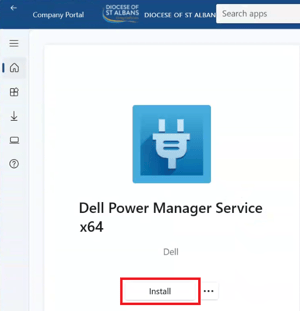
- If it's not installed, open the Company Portal app
- Search for Dell Power Manager Service x64
- Select Install
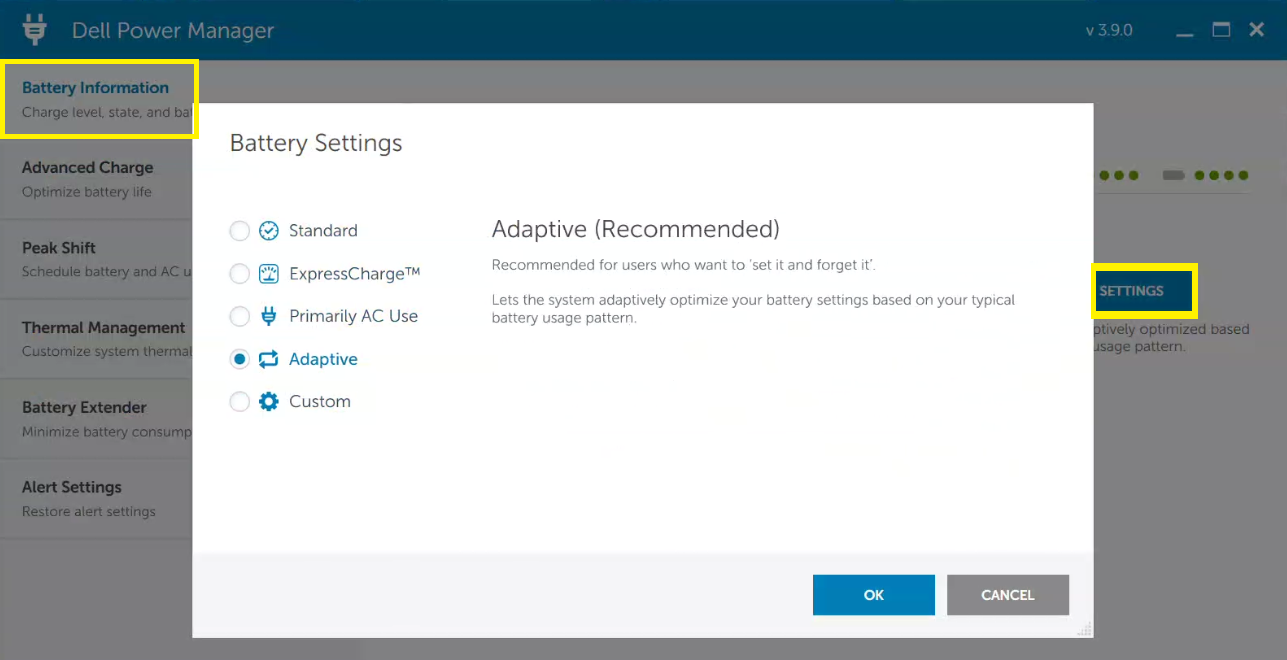
- Select Battery Information in the left menu
- Select the Battery Setting > SETTINGS blue button to choose your desired charging mode:
- Standard*: Best when switching regularly between AC and Battery
- ExpressCharge*: Like standard but with quicker charging times
- Primarily AC Use: Best when plugged in all the time
- Adaptive: Recommended mode which adapts to your charging habits
- Custom: Best when you want to set your own start and stop charging limits
*Warning: Setting the charging mode to Standard or ExpressCharge will shorten the lifespan of your laptop battery
Tip: Adaptive and Primarily AC Use charging modes may limit charging to around 80% to help preserve battery health. This behaviour is expected and may be adjusted automatically based on usage patterns.
If you need the battery to charge to 100%, temporarily change the charging mode to Standard and apply the change. You can then switch back to your preferred charging mode if required. Be aware that Adaptive mode may reapply a lower charging limit in the future as it continues to optimise battery longevity.