Warning: This article is specifically for changing how Microsoft Edge handles opening PDFs when you have Adobe Acrobat or Foxit PDF Editor installed.
To set what app opens PDFs by default please go to this article instead:
Note: The free version of Adobe Acrobat is no longer installed on diocesan workstations. If you would like it installed on your computer open the Company Portal app or raise a support ticket.
If you use Foxit PDF Editor, you do not need Adobe Acrobat installed.
1. Ensure Acrobat or Foxit PDF Editor is set as default to open PDFs
2. Change how Microsoft Edge handles PDFs
Even with Adobe Acrobat as the default programme on your computer, Microsoft Edge may still open PDFs in a browser window. To change this configuration:- In Microsoft Edge select the 3 dots top right ...
- Select Settings
- In the left menu search and select PDF documents
- Or navigate to Cookies and site permissions in the left panel
- Scroll down to PDF documents in the right panel
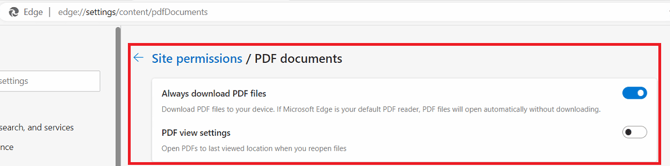
- Enable Always download PDF files
- PDF files will now always download to your Downloads folder when you click on a PDF link.
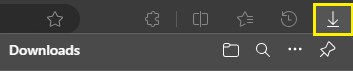
- Open the PDF from the downloads icon or select CTRL + J or from your Downloads folder.
- Disable PDF view settings
- Alternatively if you would prefer to be asked for each download:
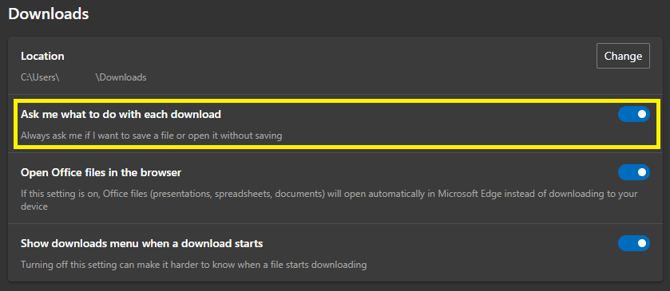
- Navigate to Settings > Downloads
- Enable Ask me what to do with each download
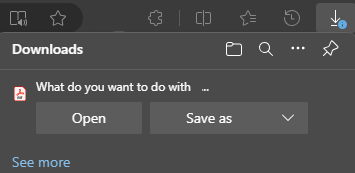
- Whenever you select a link a prompt will show: