
Warning: Using personal devices or personal accounts for diocesan work introduces significant security risks. All diocesan work and data must be kept within diocesan‑managed systems and services, using diocesan accounts and carried out on a diocesan device, when provided. If your diocesan device does not meet your requirements, please raise a support ticket so the IT Team can assist.
Note: Access to your diocesan account on a personal Mac is only possible using a web browser, eg. Safari, Google Chrome, Microsoft Edge. You will not be able to sign into Microsoft apps, eg. Microsoft 365 (Office), OneDrive etc.
Contents
Personal Device Requirements for Access
-
Supported macOS fully up to date with all security updates installed
Apple Support: Update macOS on Mac > -
Active security protection:
-
Built-in Mac XProtect, Notarization & Gatekeeper (on by default)
-
Or suitable alternative, eg. Sophos, Norton, Bitdefender etc
-
- Firewall enabled:
- Macs have strong built‑in security, but the firewall isn’t turned on by default, so we require it to be enabled to give your device extra protection.
Apple Support: Block connections to your Mac with a firewall >
- Macs have strong built‑in security, but the firewall isn’t turned on by default, so we require it to be enabled to give your device extra protection.
Access your diocesan account in a web browser
Tip: If you encounter errors during sign-in, we recommend you clear your web browser's history. See How do I clear my internet browser's cookies and cache? >
1. Open a web browser:
 |
 |
 |
| Safari | Google Chrome | Microsoft Edge |
2. Visit the Microsoft web service you require:
|
COMMUNICATION |
MICROSOFT |
|||
 |
 |
|
 |
 |
| Emails | Calendars | Surveys | View all Apps | |
| FILES | ||||
 |
 |
 |
 |
 |

3. You should see the Microsoft sign in prompt.
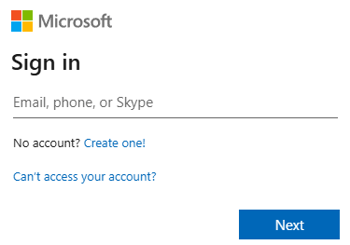
-
If you are already signed in, you might see a message saying "You need to sign in...". Select the Sign in button to continue.

Warning: If you are signed in with a different Microsoft account, like a personal or other work account, you will not be able to access diocesan systems without signing out or using a different web browser profile. See: Handling multiple Microsoft accounts >
4. Sign in with your diocesan email address, password and MFA code.
Tip: If you need to reset your password or MFA see: How do I reset or change my Microsoft 365 password and multi-factor authentication (MFA / 2FA)? >
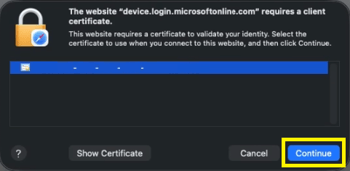
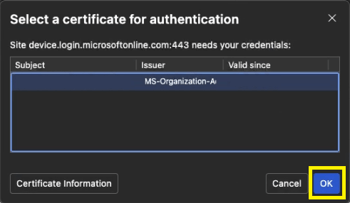
5. If a certificate is required select Continue or OK
 |
 |
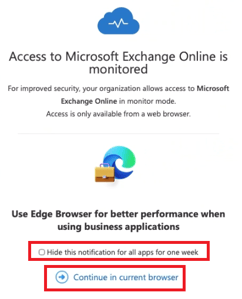 6. If a message saying Access to Microsoft ... is monitored appears, it relates to a routine safety check to ensure the sign‑in is secure and everything is working normally. It is an automated process and does not involve anyone viewing or tracking individual activity.
-
Select Hide this notification... if you wish to suppress this message for subsequent logins
-
Select ➡️Continue in current browser
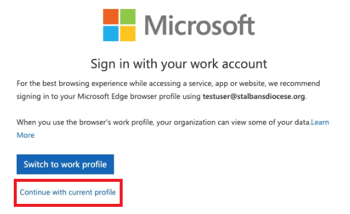
7. If you are using Microsoft Edge you may get a request to Sign in with your work account.
Select Continue with current profile as work profiles are blocked on Macs.
8. If all checks pass, access is granted.