
Contents
🪟 Windows
Windows 11 now uses the Snipping Tool by default when you press the Print Screen key.
Taking a Screenshot — Ways to Open Snipping Tool
You can open the Snipping Tool capture interface in any of these ways:
-
Option 1 — Press the Print Screen (PrtScn) key
Opens the Snipping Tool capture bar at the top of the screen. -
Option 2 — Keyboard shortcut: Windows + Shift + S
Opens the same capture bar. -
Option 3 — Open the Snipping Tool app manually
Go to Start button → type "Snipping Tool" → open the app.
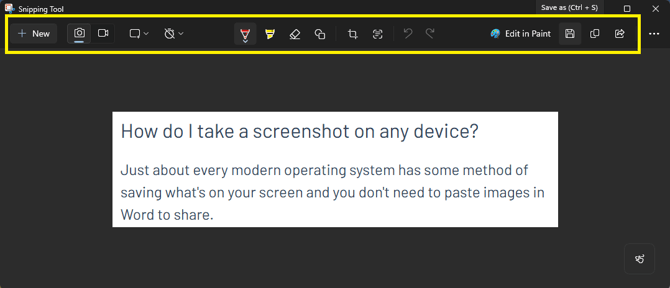
Snipping Tool Features
Once Snipping Tool is open, you can access the following tools and options:
Snip Modes (Capture Types)
- Rectangular snip – drag to select a defined rectangular area
- Freeform snip – draw any shape freely
- Window snip – capture a specific application window
- Fullscreen snip – capture the entire display
Screenshot or Screen Recording
Switch between:
- Screenshot mode
- Screen recording mode (record all or part of the screen)
Delay
Choose a delay before capture if required (3, 5 and 10 seconds). Useful for capturing menus or hover effects.
New
Select New to begin a fresh screenshot or recording.
Editing Tools
After taking a snip, markup options include:
- Pen
- Highlighter
- Eraser
- Ruler / Protractor
- Crop
- Touch writing
- You can also select Edit in Paint for more advanced editing.
Where screenshots are saved
If saving from the Snipping Tool, press the Save icon and choose where to store the image file.
When using the PrtScn key to capture a snip:
- A small preview appears in the bottom‑right corner
- Click it to annotate or save
- Screenshots are automatically saved to your OneDrive:
OneDrive - St Albans Diocese → Pictures → Screenshots
Sharing screenshots
Once a screenshot is saved, it is better to upload or share the image file itself rather than pasting it into a Word document.
Sharing the actual image file has advantages:
- Cleaner and more professional presentation
- Smaller file size
- Easier for someone to view or insert into other systems
- Avoids multiple “Word‑based screenshot documents” being emailed around
You can share the image directly via OneDrive shared links, Microsoft Teams and upload the file when raising IT Help tickets under Screenshots.
🍏 iPhone & iPad
How to take a screenshot
Devices with Face ID (no Home button)
-
Press Side button + Volume Up at the same time.
Devices with a Home button
-
Press Home button + Power button together.
A thumbnail appears briefly:
- Tap it to edit
- Swipe it away or wait to save automatically
Where screenshots are saved
Screenshots automatically go to:
-
Photos → Recents
-
Photos → Albums → Screenshots
You can share the image directly via OneDrive shared links, Microsoft Teams and upload the file when raising IT Help tickets under Screenshots.
🤖 Google Pixel Phones (Android)
How to take a screenshot
On most Google Pixel devices:
- Press Power button + Volume Down at the same time
- Hold for about one second
A toolbar appears where you can:
- Edit
- Share
- Delete
- Capture a scrolling screenshot (when available)
Where screenshots are saved
Pixel stores them in:
- Files app → Images → Screenshots
-
Gallery/Photos app → Screenshots
You can share the image directly via OneDrive shared links, Microsoft Teams and upload the file when raising IT Help tickets under Screenshots.