
Warning: For diocesan devices in the UK on the unlimited mobile data tariff. Do not tether personal devices to your diocesan mobile phone.
Caution: Data is limited outside the UK. Please raise a support ticket with the IT Team first (Access Abroad) and use only for emergencies, setting the connection as metered. You may be charged for excessive fees you have created on your account.
Mobile tariff information can be found here:
What are the details of the Three Mobile tariff on my diocesan iPhone or iPad? > Abroad
🍏Enable Personal Hotspot on iPhone
-
Open Settings on your iPhone
-
Tap Personal Hotspot (or Cellular > Personal Hotspot)
-
Toggle Allow Others to Join to enable it
-
Take note of the Wi-Fi password displayed on this screen
🤖Enable Personal Hotspot on Google Pixel
- Open Settings on your Google Pixel
- Select Network and Internet
- Select Hotspot and tethering
- Select Wi-Fi hotspot
- Toggle Use Wi-Fi hotspot to enable
- Select Hotspot password to view and modify the passwork
💻Connect your Computer to your Mobile's Hotspot
-
On your computer, select the Wi-Fi icon
-
Windows: Click the network/Wi-Fi icon in bottom-right corner of the taskbar
- Mac: Click the Wi-Fi icon in the menu bar atthe top-right of screen
-
-
Look for your mobile hotspot's network name in the list of available Wi-Fi networks
-
Select the network and choose Connect (Windows) or click the network name (Mac)
-
Enter the Wi-Fi password displayed on your mobile device
-
Select Next (Windows) or Join (Mac) to connect
- Wait a few moments for the connection to be established
📉 Reduce Data Usage on a Mobile Hotspot
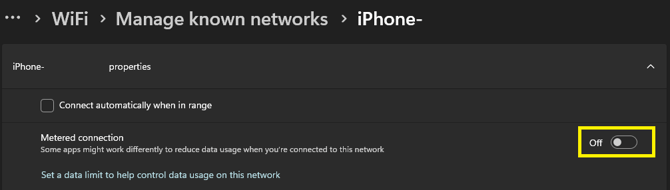
By marking the WiFi connection as metered, certain high data activities such as Updates and syncing will be limited to reduce the amount of mobile data used.
- Open your Wi-Fi settings:
- Windows: Select Start, type WiFi settings, and open it
- Mac: Open System Settings and select Wi‑Fi
- Select the Wi‑Fi network connected to your mobile hotspot
- Enable the appropriate setting:
- Windows: Turn Metered connection On
- Mac: Turn Low Data Mode On
- Your computer will now reduce background data usage, helping to conserve your mobile data allowance.
Troubleshooting Tips
-
Personal Hotspot not visible? Restart both your mobile and computer.
- Connection drops frequently? Check your mobile's signal strength and move the mobile to a better location.
Video Tutorial
Learn how to connect a Windows 11 laptop to an iPhone hotspot