Warning: Using personal devices or personal accounts for diocesan work introduces significant security risks. All diocesan work and data must be kept within diocesan‑managed systems and services, using diocesan accounts and carried out on a diocesan device, when provided. If your diocesan device does not meet your requirements, please raise a support ticket so the IT Team can assist.
Access to your diocesan account on a personal Mac is only possible using the Microsoft Edge web browser in a work profile.
Edge lets you use the online versions of Word, Excel and PowerPoint, so you can open and work on your SharePoint or OneDrive files without installing or using any Office apps on your computer.
You will not be able to sign into desktop apps, eg. Microsoft 365 (Office), OneDrive, Teams etc.
Contents
Personal Device Requirements for Access
- User account accessible only to you, secured with a strong password or biometrics
- Supported Windows Operating Systems fully up to date:
- Windows 11 with the latest monthly security updates
- Windows 10 with Extended Security Updates (ESU) (if no computer provided)
- Hard drive encrypted:
- Built-in Bitlocker (typically enabled in Windows 11 when you sign in with a Microsoft account)
- Or suitable alternative
- Active security protection:
- Built-in Windows Security (on by default)
- Or suitable alternative, eg. Sophos, Norton, Bitdefender etc
- Firewall enabled:
- Built-in Windows Firewall (typically on by default)
- Or suitable alternative
- Microsoft Edge web browser:
- Preinstalled on modern Windows operating system editions
Access your diocesan account in Microsoft Edge
Note: Access on personal Windows computers is restricted to Microsoft Edge only. Other web browsers on personal devices, eg. Google Chrome, Mozilla Firefox etc, are blocked.
You will be creating a separate Edge work profile for your diocesan account. This keeps your diocesan browsing and data separate from any personal information on your device. The Diocese of St Albans cannot access personal data.
Warning: If you share your Windows sign in with somebody else, such as a family member, please create your own separate Windows user account to prevent unauthorised access. Note, you will not be able to use your diocesan email to sign into Windows.
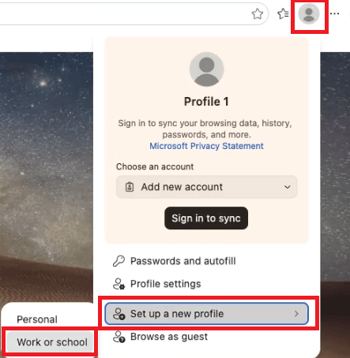 1. Open Microsoft Edge on your Windows computer

2. Select the 👤profile icon in the top right
3. Select Set up a new profile
4. Select Work or school
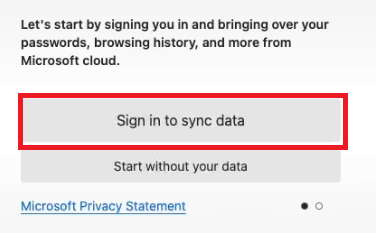
5. A new Edge profile windows will open
6. Select Sign in to sync data
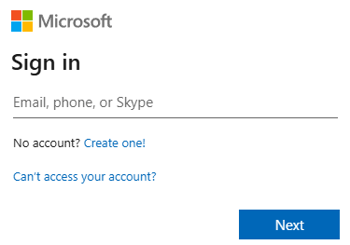
7. Enter your diocesan credentials into the Microsoft Sign in prompt
8. Select Yes to Sign in to all apps, websites, and services on this device?
- If you select No, this app only you will not be able to sign in. To resolve, remove your diocesan Edge work profile that you have just created and start again.
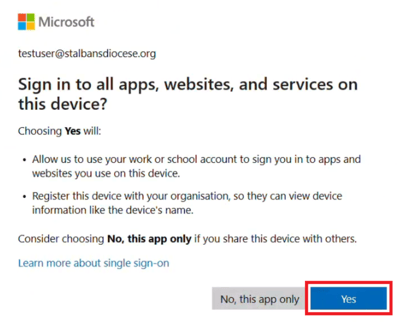
9. Your device will be registered with our systems and checked for compliance.
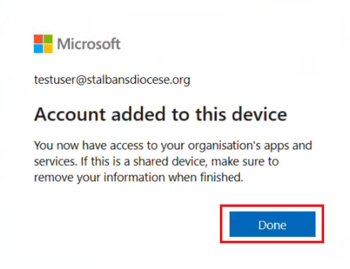
10. When registration has completed you will see Account added to this device. Select Done.
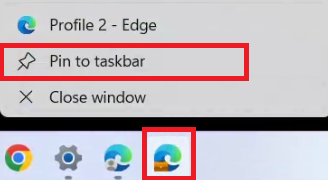
 11. An additional Edge icon will appear in your taskbar. For easy access, right click on the new icon and select Pin to taskbar.
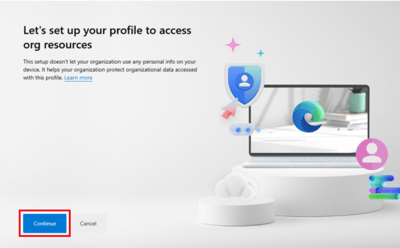
12. Select Continue for Let's set up your profile to access org resources
13. Go to the diocesan Microsoft service you require, eg
- For emails go to https://outlook.cloud.microsoft
- For OneDrive go to https://stalbansdiocese-my.sharepoint.com/
- For other Microsoft services see our KB article:
Web Browser Versions of Microsoft Apps >
Error Messages
|
You can't get there from here |
|
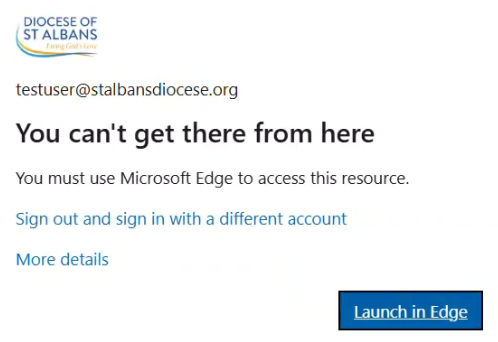 |
Reason: You are using a different internet browser to Microsoft Edge, eg. Google Chrome.
|
|
OS update warning & App access blocked (Windows version) |
|
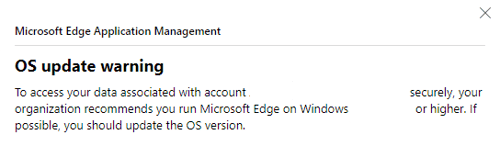 |
Reason: Your Windows version is not supported.
|
|
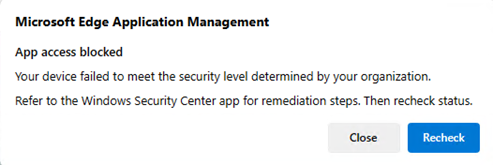
App access blocked (Security) |
|
 |
|
| Offline Grace Period Expired | |
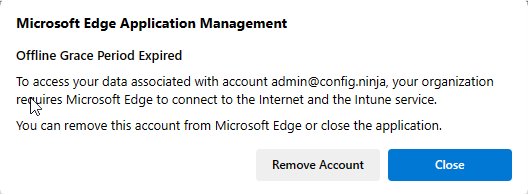 |
You have not accessed your diocesan account for a long period. You will need to remove the account and setup again for access. |
| Switch Edge profile > Sign in loop / Cannot sign in | |
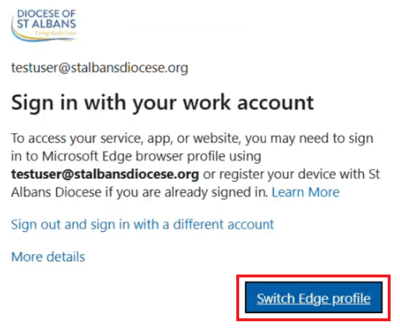 |
Selecting Switch Edge profile leads you to sign in but returns you back to the same message. Reason: During setup at Sign in to all apps, websites, and services on this device you selected No, this app only instead of Yes. This will prevent you from signing in. Resolution: Remove your diocesan Edge work profile and start setup again and select Yes to the sign in message. |
 Resolution: Use Windows Update to receive the latest security updates for access. Refer to
  The Windows Security Centre app on your Windows device is reporting a security issue. Open the Windows Security app to resolve.
Switching to your diocesan Edge work profile
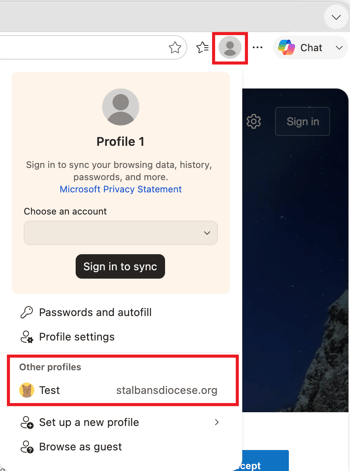
If your diocesan work profile doesn't open when you open Microsoft Edge, switch by selecting the profile picture at the top right and choosing the diocesan profile.
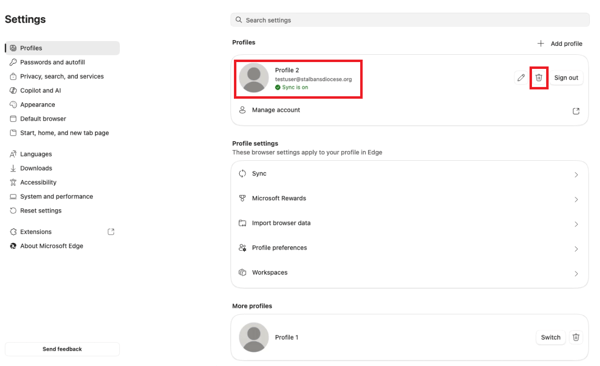
Removing your diocesan Edge work profile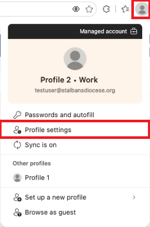
- Select the 👤profile icon in the top right
- Select ⚙️Profile Settings
- Under Profiles find the profile associated with your diocesan email address
- Select the🗑️bin icon to delete
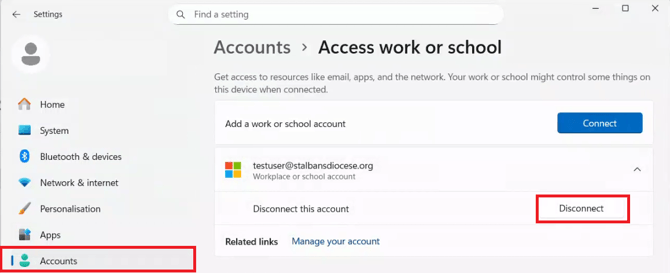
- Open Windows⚙️Settings
- Select Accounts
- Select Access work or school
- Expand your listed diocesan email address
- Select Disconnect