
Troubleshooting Steps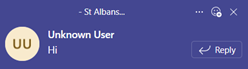
- Sign out of Teams (your picture top right > Sign out) and sign in again.
- In Teams Chats, remove and re-add:
- Hover over your chat with the person that's showing as Unknown User
- Select the 3 dots (...)
- Select Remove chat history
- Create a new chat and choose that person
- If the above doesn't work, next clear the Teams app cache:
- Open the Windows ⚙️Settings app
- Select Apps > Installed apps > Microsoft Teams > 3 dots on right (...) > Advanced Options > scroll down and select Reset
- When you next open the Teams app it should download the correct data for the user