Paste the URL as a web address instead of a hyperlinked title
-
In Microsoft Edge, copy the URL you want from the address bar by either right-clicking it and selecting Copy from the context menu or by selecting the address and pressing Ctrl + C.
-
In an app, press Ctrl + Shift + V to paste the web address.
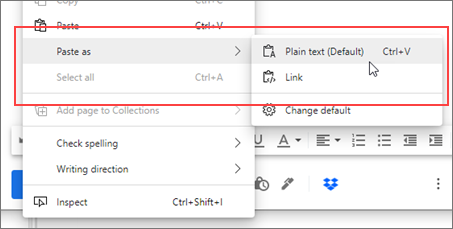
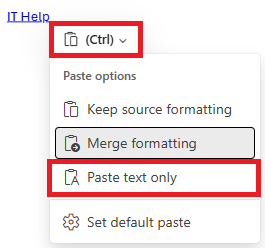
In Outlook New a (Ctrl) box appears when you paste. Select the drop down arrow and choose Paste text only. Outlook will turn it into a hyperlink automatically but still show the full URL.If you're pasting into an app or website in Microsoft Edge, you can also right-click, select Paste as on the context menu, and then select Plain text from the sub-menu.
Change the default behaviour
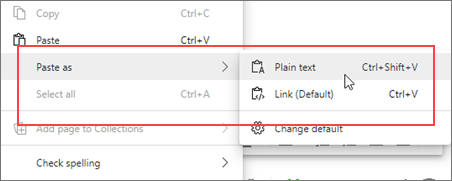
Rather than have the default paste result in a hyperlinked title, you can change the default so that Ctrl+ V pastes a web address instead and offers a linked title as the alternative in the context sub-menu.
-
In Microsoft Edge, select More , and then select Settings .
-
Under Settings, select Share, Copy & Paste.
-
Under Share, Copy & Paste, select the default option you want: Link, to paste the URL as a hyperlinked title, or Plain text, to paste the URL as a web address.
Now, when you right click, Plain text (Default) is the default option and Link is the alternative to paste a hyperlinked title.