
TEAMS TRAINING SERIES: Contents >
Troubleshooting the Microsoft Teams App
Note: If your desktop app of Teams isn't working you can use the web version at teams.microsoft.com. See Teams Training: Web Version >
- Restart: Quit and Restart the Teams app to resolve issues...
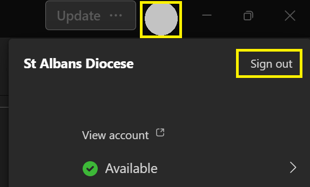 Sign out/in:
- Select your profile picture top right > Sign out
- Select Sign out
- Open Teams app and sign in
- Reset App: If the above doesn't work, next clear the Teams app cache and reset...
- Open the Windows ⚙️Settings app
- Select Apps > Installed apps
- Scroll down to Microsoft Teams and select the ellipsis on right (...)
- Select Advanced Options > scroll down and select Reset
- This will only remove the locally stored cache on your computer. Teams data is stored in the cloud and will be downloaded again when you next sign in.
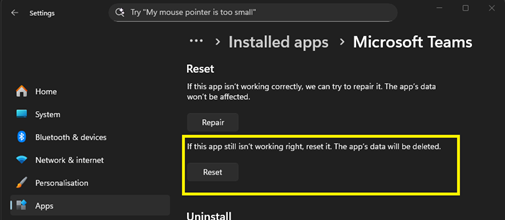
- Open the Teams app and sign in if required.
Teams App Error: "We're having trouble loading your messages"

- Quit Teams by right-clicking the Teams icon in the bottom right system tray (select the ^ arrow up icon first if Teams is hidden) and select Quit Teams. If it's not there, Teams is not running.
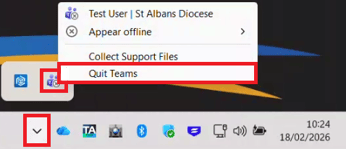
- Open Windows File Explorer

- Copy and paste the path below in the address bar, and press the Enter key:
-
%localappdata%\Packages\MSTeams_8wekyb3d8bbwe\LocalCache\Microsoft\MSTeams

- Select all the contents in the folder and delete so the folder is empty.
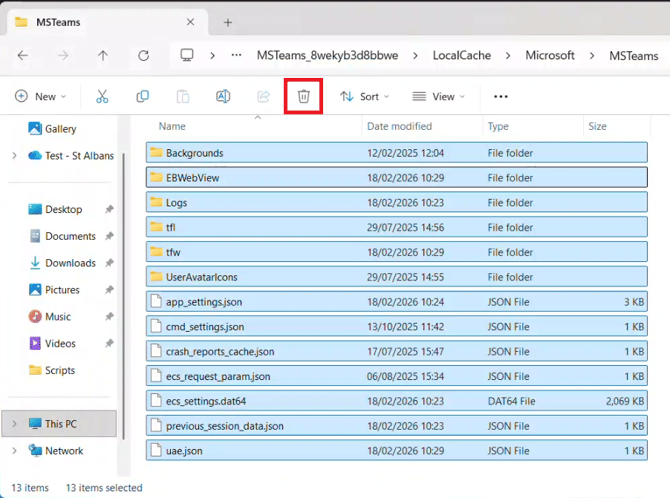
- Copy and paste the path below in the Windows Explorer address bar, and press the Enter key:
-
%LOCALAPPDATA%\Microsoft\IdentityCache
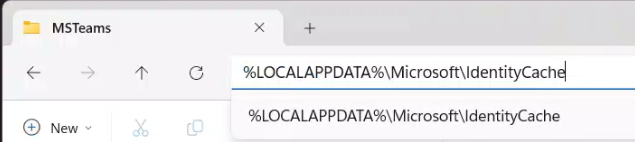
- Select all the contents in the folder and delete so the folder is empty.
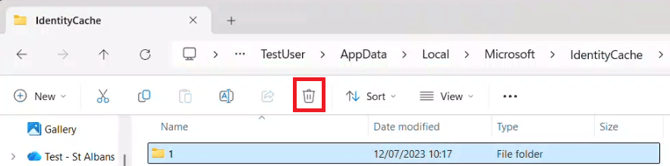
- Start Teams and sign in if required.